Docker: From Development to Production
Complete Docker guide for containerizing applications. Dockerfile, Docker Compose, multi-stage builds and production deployment explained with practical examples.
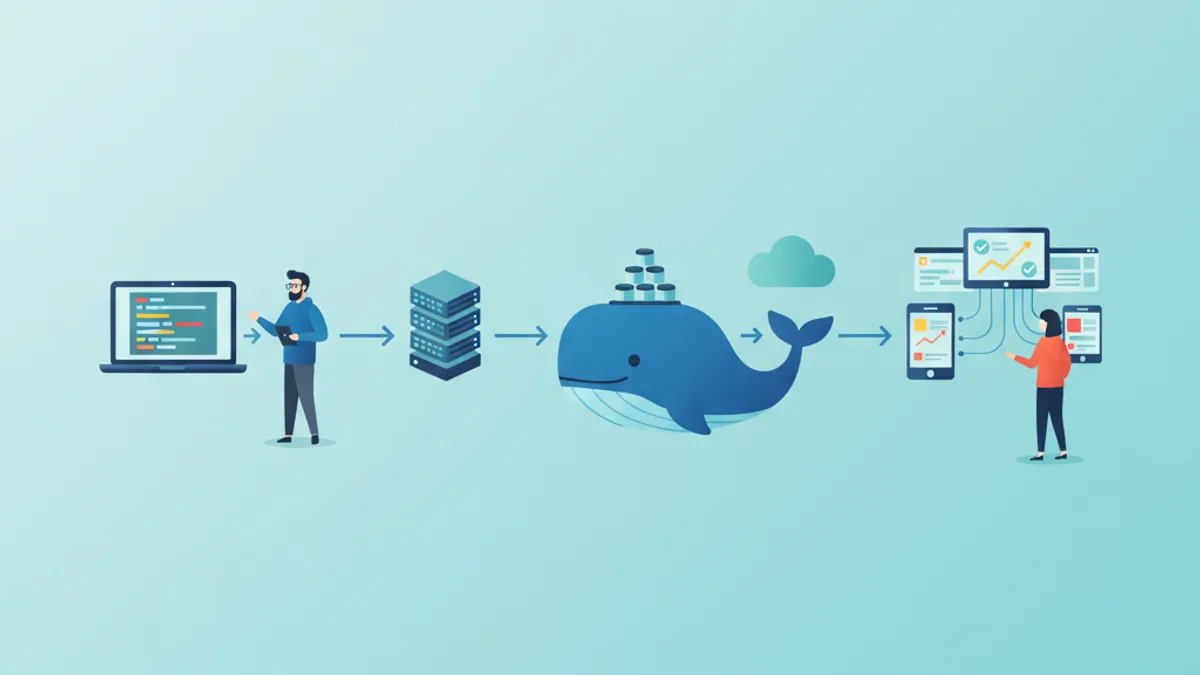
Docker revolutionizes the way applications are developed, tested, and deployed. By encapsulating an application and its dependencies in a portable container, Docker eliminates the infamous "it works on my machine" problem and ensures consistency across all environments. This guide covers the complete journey from the first Dockerfile to production deployment.
Docker Desktop 5.x brings major performance improvements, including native containerd support, optimized resource management, and seamless Kubernetes integration. Multi-architecture images (ARM/x86) are now standard practice.
Containerization Fundamentals
A container is a lightweight software unit that packages code, runtime, system libraries, and settings. Unlike virtual machines that virtualize hardware, containers share the host system kernel, making them faster to start and less resource-intensive.
# terminal
# Docker installation on Ubuntu
sudo apt update
sudo apt install -y docker.io

# Add user to docker group (avoids sudo)
sudo usermod -aG docker $USER

# Verify installation
docker --version
# Docker version 26.1.0, build 1234567

# First container: downloads image and runs
docker run hello-world
This command downloads the hello-world image from Docker Hub and launches a container that displays a confirmation message.
# terminal
# List running containers
docker ps

# List all containers (including stopped)
docker ps -a

# List downloaded images
docker images

# Remove a container
docker rm <container_id>

# Remove an image
docker rmi <image_name>
These basic commands manage the lifecycle of containers and images.
Creating Your First Dockerfile
A Dockerfile contains instructions to build a Docker image. Each instruction creates a layer in the final image, enabling caching and reuse.
# Dockerfile
# Base image: Node.js 22 on Alpine Linux (lightweight)
FROM node:22-alpine

# Set working directory in the container
WORKDIR /app

# Copy dependency files first (cache optimization)
COPY package*.json ./

# Install dependencies
RUN npm ci --only=production

# Copy source code
COPY . .

# Expose port (documentation)
EXPOSE 3000

# Startup command
CMD ["node", "server.js"]
The order of instructions is crucial for cache optimization. Files that rarely change (package.json) should be copied before source code.
# terminal
# Build image with a tag
docker build -t my-app:1.0 .

# Run the container
docker run -d -p 3000:3000 --name my-app-container my-app:1.0

# Check logs
docker logs my-app-container

# Access container shell
docker exec -it my-app-container sh
The -d flag runs the container in the background, -p maps port 3000 from the container to port 3000 on the host.
Alpine images are significantly smaller (around 5 MB vs 120 MB for Debian). However, they use musl libc instead of glibc, which can cause incompatibilities with some native dependencies. When issues arise, prefer Debian-based images (node:22-slim).
Multi-stage Builds for Production
Multi-stage builds create optimized production images by separating the build environment from the runtime environment. Only necessary artifacts are included in the final image.
# Dockerfile.production
# ============================================
# Stage 1: Build
# ============================================
FROM node:22-alpine AS builder
WORKDIR /app
# Copy and install dependencies (including devDependencies)
COPY package*.json ./
RUN npm ci
# Copy source code
COPY . .
# Build the application (TypeScript, bundling, etc.)
RUN npm run build
# ============================================
# Stage 2: Production
# ============================================
FROM node:22-alpine AS production
# Non-root user for security
RUN addgroup -g 1001 -S nodejs && \
adduser -S nodejs -u 1001
WORKDIR /app
# Copy only necessary files from builder stage
COPY /app/dist ./dist
COPY /app/node_modules ./node_modules
COPY /app/package.json ./
# Switch to non-root user
USER nodejs
# Environment variables
ENV NODE_ENV=production
ENV PORT=3000
EXPOSE 3000
# Startup command
CMD ["node", "dist/server.js"]This approach significantly reduces the final image size by excluding build tools, devDependencies, and source files.
# terminal
# Build with specific file
docker build -f Dockerfile.production -t my-app:production .

# Compare image sizes
docker images | grep my-app
# my-app    production    abc123    150MB
# my-app    1.0           def456    450MB
Size reduction can reach 60-70% depending on the project, improving deployment times and reducing attack surface.
Docker Compose for Local Orchestration
Docker Compose simplifies multi-container application management. A YAML file declares all services, their configurations, and dependencies.
# docker-compose.yml
version: "3.9"

services:
  # Main application
  app:
    build:
      context: .
      dockerfile: Dockerfile
    ports:
      - "3000:3000"
    environment:
      - NODE_ENV=development
      - DATABASE_URL=postgresql://postgres:secret@db:5432/myapp
      - REDIS_URL=redis://cache:6379
    volumes:
      # Mount source code for hot-reload
      - ./src:/app/src
      - ./package.json:/app/package.json
    depends_on:
      db:
        condition: service_healthy
      cache:
        condition: service_started
    networks:
      - app-network

  # PostgreSQL database
  db:
    image: postgres:16-alpine
    environment:
      POSTGRES_USER: postgres
      POSTGRES_PASSWORD: secret
      POSTGRES_DB: myapp
    volumes:
      # Data persistence
      - postgres_data:/var/lib/postgresql/data
      # Initialization script
      - ./init.sql:/docker-entrypoint-initdb.d/init.sql
    ports:
      - "5432:5432"
    healthcheck:
      test: ["CMD-SHELL", "pg_isready -U postgres"]
      interval: 5s
      timeout: 5s
      retries: 5
    networks:
      - app-network

  # Redis cache
  cache:
    image: redis:7-alpine
    ports:
      - "6379:6379"
    volumes:
      - redis_data:/data
    command: redis-server --appendonly yes
    networks:
      - app-network

# Named volumes for persistence
volumes:
  postgres_data:
  redis_data:

# Dedicated network for isolation
networks:
  app-network:
    driver: bridge
Services communicate using their names (db, cache) through the internal Docker network. Healthchecks ensure dependencies are ready before the application starts.
# terminal
# Start all services
docker compose up -d

# View logs from all services
docker compose logs -f

# Logs from a specific service
docker compose logs -f app

# Stop and remove containers
docker compose down

# Removal including volumes (caution: data loss)
docker compose down -v

# Rebuild after Dockerfile changes
docker compose up -d --build
Ready to ace your DevOps interviews?
Practice with our interactive simulators, flashcards, and technical tests.
Managing Secrets and Environment Variables
Secure secret management is crucial in production. Docker offers several approaches depending on the context.
# docker-compose.override.yml (development only)
version: "3.9"

services:
  app:
    env_file:
      - .env.development
    environment:
      - DEBUG=true
For production, Docker secrets provide better security.
# docker-compose.production.yml
version: "3.9"

services:
  app:
    build:
      context: .
      dockerfile: Dockerfile.production
    secrets:
      - db_password
      - api_key
    environment:
      - NODE_ENV=production
      - DATABASE_PASSWORD_FILE=/run/secrets/db_password
      - API_KEY_FILE=/run/secrets/api_key

secrets:
  db_password:
    file: ./secrets/db_password.txt
  api_key:
    file: ./secrets/api_key.txt
Application code reads secrets from mounted files.
const fs = require('fs');
const path = require('path');

// Utility function to read Docker secrets
function readSecret(secretName) {
  const secretPath = `/run/secrets/${secretName}`;

  // Check if secret file exists
  if (fs.existsSync(secretPath)) {
    return fs.readFileSync(secretPath, 'utf8').trim();
  }

  // Fallback to classic environment variables
  const envVar = secretName.toUpperCase();
  return process.env[envVar];
}

module.exports = {
  databasePassword: readSecret('db_password'),
  apiKey: readSecret('api_key'),
};
This approach avoids exposing secrets in environment variables or Docker images.
Optimizing Docker Images
Several techniques reduce image size and improve performance.
# Dockerfile.optimized
FROM node:22-alpine AS base
# Install necessary tools in a single layer
RUN apk add --no-cache \
dumb-init \
&& rm -rf /var/cache/apk/*
# ============================================
# Stage: Dependencies
# ============================================
FROM base AS deps
WORKDIR /app
# Copy only lock files for caching
COPY package.json package-lock.json ./
# Install with mounted npm cache (BuildKit)
RUN \
npm ci --only=production
# ============================================
# Stage: Builder
# ============================================
FROM base AS builder
WORKDIR /app
COPY package.json package-lock.json ./
RUN \
npm ci
COPY . .
RUN npm run build
# ============================================
# Stage: Production
# ============================================
FROM base AS production
# Image metadata
LABEL maintainer="team@example.com"
LABEL version="1.0"
LABEL description="Production-ready Node.js application"
# Non-root user
RUN addgroup -g 1001 -S nodejs && \
adduser -S nodejs -u 1001
WORKDIR /app
# Copy production dependencies
COPY /app/node_modules ./node_modules
# Copy build output
COPY /app/dist ./dist
COPY /app/package.json ./
USER nodejs
ENV NODE_ENV=production
# dumb-init as PID 1 for signal handling
ENTRYPOINT ["dumb-init", "--"]
CMD ["node", "dist/server.js"]Using dumb-init ensures proper Unix signal handling, enabling graceful container shutdown.
# terminal
# Enable BuildKit for advanced features
export DOCKER_BUILDKIT=1

# Build with cache and detailed output
docker build --progress=plain -t my-app:optimized .

# Analyze image layers
docker history my-app:optimized

# Detailed image inspection
docker inspect my-app:optimizedRegularly scan images for vulnerabilities using tools like Trivy or Snyk. Base images should be updated regularly to include security patches.
Advanced Docker Networking
Docker offers several network drivers for different use cases.
# docker-compose.networking.yml
version: "3.9"

services:
  # Publicly accessible frontend
  frontend:
    build: ./frontend
    ports:
      - "80:80"
    networks:
      - frontend-network
      - backend-network

  # API accessible only from frontend
  api:
    build: ./api
    networks:
      - backend-network
      - database-network
    # No external ports exposed

  # Isolated database
  database:
    image: postgres:16-alpine
    networks:
      - database-network
    # Accessible only by API

networks:
  frontend-network:
    driver: bridge
  backend-network:
    driver: bridge
    internal: true  # No internet access
  database-network:
    driver: bridge
    internal: true
This configuration isolates services following the principle of least privilege. The database is only accessible by the API.
# terminal
# Inspect Docker networks
docker network ls

# Details of a specific network
docker network inspect app-network

# Create a custom network
docker network create --driver bridge --subnet 172.28.0.0/16 custom-network

# Connect a container to an existing network
docker network connect custom-network my-container
Volumes and Data Persistence
Docker volumes preserve data beyond container lifecycle.
# docker-compose.volumes.yml
version: "3.9"

services:
  app:
    image: my-app:latest
    volumes:
      # Named volume for persistent data
      - app_data:/app/data
      # Bind mount for development
      - ./uploads:/app/uploads:rw
      # Read-only mount for configuration
      - ./config:/app/config:ro

  backup:
    image: alpine
    volumes:
      # Access same volume for backups
      - app_data:/data:ro
      - ./backups:/backups
    command: |
      sh -c "tar czf /backups/backup-$$(date +%Y%m%d).tar.gz /data"

volumes:
  app_data:
    driver: local
    driver_opts:
      type: none
      device: /path/to/host/data
      o: bind
The distinction between named volumes and bind mounts is important: volumes are managed by Docker while bind mounts use the host filesystem directly.
# terminal
# List volumes
docker volume ls

# Inspect a volume
docker volume inspect app_data

# Remove orphaned volumes
docker volume prune

# Backup a volume
docker run --rm -v app_data:/data -v $(pwd):/backup alpine \
  tar czf /backup/volume-backup.tar.gz /data
Production Deployment
A robust deployment workflow includes building, testing, and pushing to a registry.
# deploy.sh
#!/bin/bash
set -e

# Variables
REGISTRY="registry.example.com"
IMAGE_NAME="my-app"
VERSION=$(git describe --tags --always)

echo "Building version: $VERSION"

# Build production image
docker build \
  -f Dockerfile.production \
  -t $REGISTRY/$IMAGE_NAME:$VERSION \
  -t $REGISTRY/$IMAGE_NAME:latest \
  --build-arg BUILD_DATE=$(date -u +"%Y-%m-%dT%H:%M:%SZ") \
  --build-arg VERSION=$VERSION \
  .

# Security scan
echo "Running security scan..."
docker run --rm -v /var/run/docker.sock:/var/run/docker.sock \
  aquasec/trivy image $REGISTRY/$IMAGE_NAME:$VERSION

# Push to registry
echo "Pushing to registry..."
docker push $REGISTRY/$IMAGE_NAME:$VERSION
docker push $REGISTRY/$IMAGE_NAME:latest

echo "Deployment complete: $REGISTRY/$IMAGE_NAME:$VERSION"
For server deployments, a separate production compose file adapts the configuration.
# docker-compose.prod.yml
version: "3.9"

services:
  app:
    image: registry.example.com/my-app:latest
    restart: always
    deploy:
      replicas: 3
      resources:
        limits:
          cpus: "0.5"
          memory: 512M
        reservations:
          cpus: "0.25"
          memory: 256M
      update_config:
        parallelism: 1
        delay: 10s
        failure_action: rollback
    healthcheck:
      test: ["CMD", "curl", "-f", "http://localhost:3000/health"]
      interval: 30s
      timeout: 10s
      retries: 3
      start_period: 40s
    logging:
      driver: "json-file"
      options:
        max-size: "10m"
        max-file: "3"
This configuration defines resource allocation, update strategy, and healthchecks for reliable deployment.
# terminal
# Production deployment with Docker Compose
docker compose -f docker-compose.yml -f docker-compose.prod.yml up -d

# Zero-downtime update (rolling update)
docker compose -f docker-compose.yml -f docker-compose.prod.yml pull
docker compose -f docker-compose.yml -f docker-compose.prod.yml up -d --no-deps app

# Rollback if issues occur
docker compose -f docker-compose.yml -f docker-compose.prod.yml up -d --no-deps \
  --scale app=0 && \
docker compose -f docker-compose.yml -f docker-compose.prod.yml up -d --no-deps app
Monitoring and Debugging Containers
Container monitoring is essential in production.
# terminal
# Real-time statistics for all containers
docker stats

# Statistics for a specific container with custom format
docker stats my-app --format "table {{.Name}}\t{{.CPUPerc}}\t{{.MemUsage}}"

# Inspect processes in a container
docker top my-app

# Real-time Docker events
docker events --filter container=my-app

# Copy files from/to a container
docker cp my-app:/app/logs/error.log ./error.log
For in-depth debugging, several techniques are available.
# terminal
# Interactive shell in a running container
docker exec -it my-app sh

# Execute a single command
docker exec my-app cat /app/config/settings.json

# Start a container in debug mode
docker run -it --rm --entrypoint sh my-app:latest

# Inspect environment variables
docker exec my-app printenv

# Analyze logs with filters
docker logs my-app --since 1h --tail 100 | grep ERROR# docker-compose.monitoring.yml
version: "3.9"
services:
app:
# ... existing configuration
labels:
- "prometheus.scrape=true"
- "prometheus.port=3000"
- "prometheus.path=/metrics"
prometheus:
image: prom/prometheus:latest
ports:
- "9090:9090"
volumes:
- ./prometheus.yml:/etc/prometheus/prometheus.yml
- prometheus_data:/prometheus
command:
- '--config.file=/etc/prometheus/prometheus.yml'
- '--storage.tsdb.retention.time=15d'
grafana:
image: grafana/grafana:latest
ports:
- "3001:3000"
volumes:
- grafana_data:/var/lib/grafana
environment:
- GF_SECURITY_ADMIN_PASSWORD=secret
volumes:
prometheus_data:
grafana_data:This monitoring stack enables collecting and visualizing container metrics.
Conclusion
Docker transforms the development cycle by ensuring consistency across all environments. Containerization brings portability, isolation, and reproducibility—essential qualities for modern applications.
Docker Production Checklist
- ✅ Multi-stage builds for optimized images
- ✅ Non-root user in containers
- ✅ Healthchecks configured for all services
- ✅ Secrets managed via Docker secrets or secure environment variables
- ✅ Resource limits (CPU, memory) defined
- ✅ Volumes for critical data persistence
- ✅ Centralized logging with file rotation
- ✅ Security scanning of images before deployment
- ✅ Zero-downtime update strategy
- ✅ Isolated network between services
Start practicing!
Test your knowledge with our interview simulators and technical tests.
Docker mastery is a fundamental skill for every modern developer. From local environment to production deployment, Docker standardizes workflows and simplifies operations. The concepts presented here form a solid foundation for exploring Kubernetes and large-scale container orchestration.
Can you spot the bug in DevOps?
One real snippet, one hidden bug, one attempt a day. No account needed to try.

Written by
Anthony Fillion-MailletFounder of SharpSkill
Full-stack developer for over 10 years. Runs SharpSkill and answers for everything published here.
Updated on March 31, 2026
Tags
Share
Related articles

Docker Compose in 2026: Multi-Container Apps, Networking and DevOps Interview Questions
Master Docker Compose for multi-container applications with networking, volumes, and production deployment. Includes common DevOps interview questions with detailed answers.

Kubernetes Helm Charts in 2026: Packaging, Deployment and Interview Questions
Learn Helm chart structure, templating, dependencies, and deployment strategies. Includes common interview questions and best practices for production deployments.
Kubernetes: Deploying Your First Application
Hands-on guide to deploying an application on Kubernetes. From minikube installation to Deployments, Services, and ConfigMaps with practical examples.