React Native: Membangun Aplikasi Mobile Lengkap di Tahun 2026
Panduan lengkap pengembangan aplikasi mobile iOS dan Android dengan React Native. Dari persiapan lingkungan hingga publikasi, semua dasar yang Anda perlukan untuk memulai.

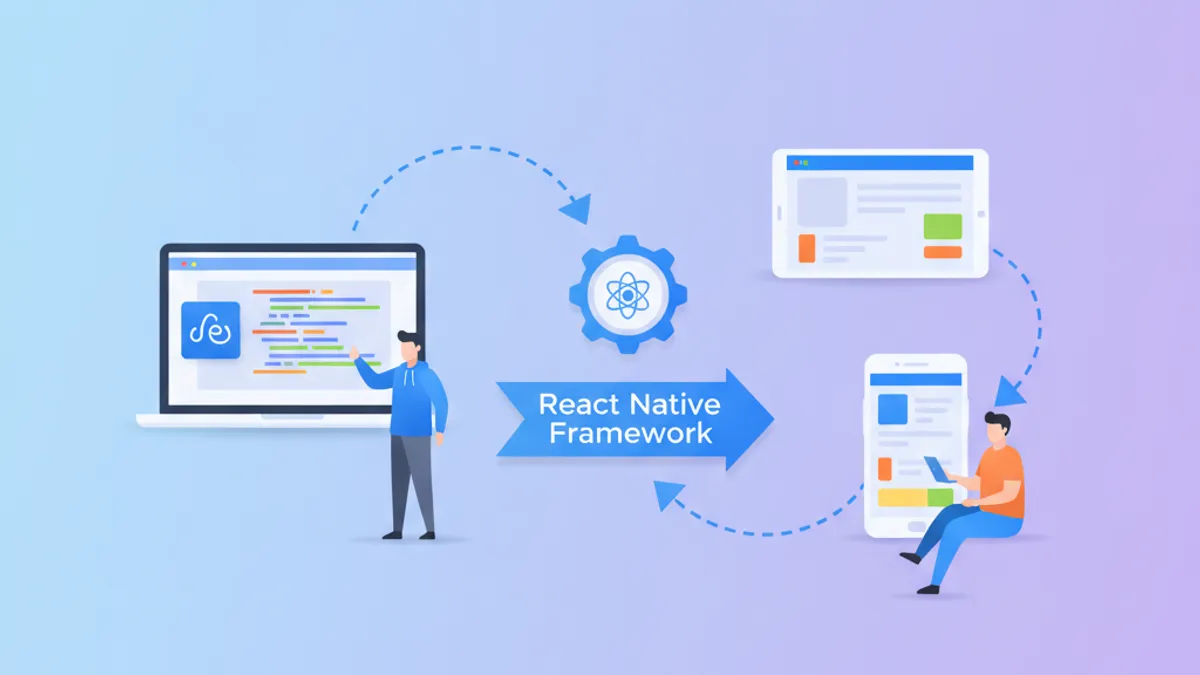
React Native memungkinkan pembuatan aplikasi mobile native untuk iOS dan Android dengan satu basis kode JavaScript. Dikelola oleh Meta dan digunakan oleh aplikasi seperti Instagram, Facebook, serta Discord, framework ini memberikan pengalaman pengembangan yang cepat sekaligus menghasilkan aplikasi berperforma tinggi.
Dengan arsitektur baru (Fabric dan TurboModules) yang kini stabil, React Native memberikan performa mendekati native sambil mempertahankan produktivitas pengembangan web. Lebih dari 40% dari 500 aplikasi teratas menggunakan React Native.
Development Environment Setup
Sebelum memulai, pemasangan perangkat yang diperlukan sangatlah penting. React Native menawarkan dua pendekatan: Expo (direkomendasikan bagi pemula) dan React Native CLI (untuk kontrol lebih lanjut).
# setup.sh
# Node.js installation (LTS version recommended)
# Check installed version
node --version  # >= 18.x required
npm --version   # >= 9.x required

# Install Expo CLI tool globally
npm install -g expo-cli

# Create a new project with Expo
npx create-expo-app@latest MyApp --template blank-typescript

# Navigate to the project
cd MyApp

# Start the development server
npx expo start
Expo secara signifikan menyederhanakan proses pengembangan dengan menangani konfigurasi native secara otomatis. Untuk menguji aplikasi, aplikasi Expo Go pada smartphone memungkinkan Anda memindai kode QR yang ditampilkan.
# structure.sh
# Generated project structure
MyApp/
├── App.tsx              # Application entry point
├── app.json             # Expo configuration
├── package.json         # Dependencies
├── tsconfig.json        # TypeScript configuration
├── babel.config.js      # Babel configuration
└── assets/              # Images and resources
    ├── icon.png
    └── splash.png
Core React Native Components
React Native menyediakan komponen native yang menggantikan elemen HTML. Setiap komponen diterjemahkan langsung menjadi komponen native iOS atau Android.
import React from 'react';
import {
  View,
  Text,
  StyleSheet,
  SafeAreaView,
  StatusBar
} from 'react-native';

// Main application component
export default function App() {
  return (
    // SafeAreaView prevents overlap with status bar
    <SafeAreaView style={styles.container}>
      {/* StatusBar configures system bar appearance */}
      <StatusBar barStyle="dark-content" />

      {/* View is the equivalent of div */}
      <View style={styles.header}>
        {/* Text is required to display text */}
        <Text style={styles.title}>Welcome to MyApp</Text>
        <Text style={styles.subtitle}>
          A React Native application
        </Text>
      </View>
    </SafeAreaView>
  );
}

// StyleSheet.create optimizes styles for native
const styles = StyleSheet.create({
  container: {
    flex: 1,                    // Takes all available space
    backgroundColor: '#ffffff',
  },
  header: {
    padding: 20,
    alignItems: 'center',       // Centers horizontally
    justifyContent: 'center',   // Centers vertically
  },
  title: {
    fontSize: 24,
    fontWeight: 'bold',
    color: '#1a1a1a',
    marginBottom: 8,
  },
  subtitle: {
    fontSize: 16,
    color: '#666666',
  },
});React Native menggunakan Flexbox dengan flexDirection: 'column' secara default (berbeda dengan web yang menggunakan row). Perbedaan ini penting untuk pengaturan tata letak.
Handling User Interactions
Interaksi sentuh dikelola melalui komponen khusus. Setiap jenis interaksi memiliki komponen tersendiri untuk optimasi performa.
import React, { useState } from 'react';
import {
  TouchableOpacity,
  TouchableHighlight,
  Pressable,
  Text,
  StyleSheet,
  View,
} from 'react-native';

// Button component with different interaction styles
export function InteractiveButton() {
  const [count, setCount] = useState(0);

  return (
    <View style={styles.container}>
      {/* TouchableOpacity reduces opacity on touch */}
      <TouchableOpacity
        style={styles.button}
        activeOpacity={0.7}
        onPress={() => setCount(c => c + 1)}
      >
        <Text style={styles.buttonText}>
          Counter: {count}
        </Text>
      </TouchableOpacity>

      {/* Pressable offers more control over states */}
      <Pressable
        style={({ pressed }) => [
          styles.button,
          styles.pressableButton,
          pressed && styles.buttonPressed,
        ]}
        onPress={() => console.log('Pressed!')}
        onLongPress={() => console.log('Long press!')}
      >
        {({ pressed }) => (
          <Text style={styles.buttonText}>
            {pressed ? 'Pressed!' : 'Press here'}
          </Text>
        )}
      </Pressable>
    </View>
  );
}

const styles = StyleSheet.create({
  container: {
    gap: 16,
    padding: 20,
  },
  button: {
    backgroundColor: '#007AFF',
    paddingVertical: 14,
    paddingHorizontal: 28,
    borderRadius: 10,
    alignItems: 'center',
  },
  pressableButton: {
    backgroundColor: '#34C759',
  },
  buttonPressed: {
    backgroundColor: '#2DA44E',
    transform: [{ scale: 0.98 }],
  },
  buttonText: {
    color: '#ffffff',
    fontSize: 16,
    fontWeight: '600',
  },
});
Screen Navigation with React Navigation
Navigasi merupakan hal esensial bagi setiap aplikasi mobile. React Navigation adalah solusi standar yang menawarkan berbagai jenis navigasi yang disesuaikan dengan pola mobile.
# install-navigation.sh
# Installing navigation dependencies
npx expo install @react-navigation/native
npx expo install @react-navigation/native-stack
npx expo install react-native-screens react-native-safe-area-contextimport React from 'react';
import { NavigationContainer } from '@react-navigation/native';
import { createNativeStackNavigator } from '@react-navigation/native-stack';
// Screen imports
import { HomeScreen } from './screens/HomeScreen';
import { DetailScreen } from './screens/DetailScreen';
import { ProfileScreen } from './screens/ProfileScreen';
// Type definition for TypeScript navigation
export type RootStackParamList = {
Home: undefined; // No parameters
Detail: { itemId: number; title: string }; // Required parameters
Profile: { userId?: string }; // Optional parameter
};
// Creating typed navigator
const Stack = createNativeStackNavigator<RootStackParamList>();
export default function App() {
return (
// NavigationContainer manages navigation state
<NavigationContainer>
<Stack.Navigator
initialRouteName="Home"
screenOptions={{
headerStyle: { backgroundColor: '#007AFF' },
headerTintColor: '#ffffff',
headerTitleStyle: { fontWeight: 'bold' },
}}
>
<Stack.Screen
name="Home"
component={HomeScreen}
options={{ title: 'Home' }}
/>
<Stack.Screen
name="Detail"
component={DetailScreen}
options={({ route }) => ({
title: route.params.title
})}
/>
<Stack.Screen
name="Profile"
component={ProfileScreen}
/>
</Stack.Navigator>
</NavigationContainer>
);
}import React from 'react';
import { View, Text, FlatList, TouchableOpacity, StyleSheet } from 'react-native';
import { NativeStackScreenProps } from '@react-navigation/native-stack';
import { RootStackParamList } from '../App';
// Typing navigation props
type Props = NativeStackScreenProps<RootStackParamList, 'Home'>;
// Sample data
const ITEMS = [
{ id: 1, title: 'First item' },
{ id: 2, title: 'Second item' },
{ id: 3, title: 'Third item' },
];
export function HomeScreen({ navigation }: Props) {
return (
<View style={styles.container}>
{/* FlatList for performant lists */}
<FlatList
data={ITEMS}
keyExtractor={(item) => item.id.toString()}
renderItem={({ item }) => (
<TouchableOpacity
style={styles.item}
onPress={() => {
// Navigation with typed parameters
navigation.navigate('Detail', {
itemId: item.id,
title: item.title,
});
}}
>
<Text style={styles.itemText}>{item.title}</Text>
</TouchableOpacity>
)}
ItemSeparatorComponent={() => <View style={styles.separator} />}
/>
</View>
);
}
const styles = StyleSheet.create({
container: {
flex: 1,
backgroundColor: '#f5f5f5',
},
item: {
backgroundColor: '#ffffff',
padding: 20,
},
itemText: {
fontSize: 16,
color: '#1a1a1a',
},
separator: {
height: 1,
backgroundColor: '#e0e0e0',
},
});Siap menguasai wawancara React Native Anda?
Berlatih dengan simulator interaktif, flashcards, dan tes teknis kami.
State Management with Context and Hooks
Untuk pengelolaan state yang sederhana hingga menengah, React Context yang dipadukan dengan hooks memberikan solusi efektif tanpa dependensi eksternal.
import React, { createContext, useContext, useState, useCallback } from 'react';

// Types for authentication
interface User {
  id: string;
  email: string;
  name: string;
}

interface AuthContextType {
  user: User | null;
  isLoading: boolean;
  signIn: (email: string, password: string) => Promise<void>;
  signOut: () => void;
}

// Creating context with default value
const AuthContext = createContext<AuthContextType | undefined>(undefined);

// Provider that wraps the application
export function AuthProvider({ children }: { children: React.ReactNode }) {
  const [user, setUser] = useState<User | null>(null);
  const [isLoading, setIsLoading] = useState(false);

  // Sign in function
  const signIn = useCallback(async (email: string, password: string) => {
    setIsLoading(true);
    try {
      // Simulated API call
      const response = await fetch('https://api.example.com/login', {
        method: 'POST',
        headers: { 'Content-Type': 'application/json' },
        body: JSON.stringify({ email, password }),
      });
      const data = await response.json();
      setUser(data.user);
    } catch (error) {
      console.error('Login error:', error);
      throw error;
    } finally {
      setIsLoading(false);
    }
  }, []);

  // Sign out function
  const signOut = useCallback(() => {
    setUser(null);
  }, []);

  return (
    <AuthContext.Provider value={{ user, isLoading, signIn, signOut }}>
      {children}
    </AuthContext.Provider>
  );
}

// Custom hook to use the context
export function useAuth() {
  const context = useContext(AuthContext);
  if (context === undefined) {
    throw new Error('useAuth must be used within an AuthProvider');
  }
  return context;
}import React, { useState } from 'react';
import {
View,
Text,
TextInput,
TouchableOpacity,
StyleSheet,
ActivityIndicator,
Alert,
} from 'react-native';
import { useAuth } from '../context/AuthContext';
export function LoginScreen() {
const [email, setEmail] = useState('');
const [password, setPassword] = useState('');
const { signIn, isLoading } = useAuth();
// Form submission handler
const handleSubmit = async () => {
if (!email || !password) {
Alert.alert('Error', 'Please fill in all fields');
return;
}
try {
await signIn(email, password);
} catch (error) {
Alert.alert('Error', 'Invalid credentials');
}
};
return (
<View style={styles.container}>
<Text style={styles.title}>Login</Text>
<TextInput
style={styles.input}
placeholder="Email"
value={email}
onChangeText={setEmail}
keyboardType="email-address"
autoCapitalize="none"
autoComplete="email"
/>
<TextInput
style={styles.input}
placeholder="Password"
value={password}
onChangeText={setPassword}
secureTextEntry
autoComplete="password"
/>
<TouchableOpacity
style={[styles.button, isLoading && styles.buttonDisabled]}
onPress={handleSubmit}
disabled={isLoading}
>
{isLoading ? (
<ActivityIndicator color="#ffffff" />
) : (
<Text style={styles.buttonText}>Sign In</Text>
)}
</TouchableOpacity>
</View>
);
}
const styles = StyleSheet.create({
container: {
flex: 1,
padding: 20,
justifyContent: 'center',
backgroundColor: '#ffffff',
},
title: {
fontSize: 28,
fontWeight: 'bold',
marginBottom: 32,
textAlign: 'center',
},
input: {
borderWidth: 1,
borderColor: '#e0e0e0',
borderRadius: 10,
padding: 16,
marginBottom: 16,
fontSize: 16,
backgroundColor: '#f9f9f9',
},
button: {
backgroundColor: '#007AFF',
padding: 16,
borderRadius: 10,
alignItems: 'center',
marginTop: 8,
},
buttonDisabled: {
backgroundColor: '#99c9ff',
},
buttonText: {
color: '#ffffff',
fontSize: 18,
fontWeight: '600',
},
});Untuk aplikasi yang lebih kompleks dengan state bersama yang luas, solusi seperti Zustand atau Redux Toolkit mungkin lebih tepat. Context optimal untuk state yang jarang berubah (tema, autentikasi).
API Calls and Data Management
Komunikasi dengan backend merupakan inti dari setiap aplikasi mobile. Berikut adalah pola yang kokoh menggunakan lapisan abstraksi untuk pemanggilan API.
// Base API configuration
const API_BASE_URL = 'https://api.example.com';

// Type for API errors
interface ApiError {
  message: string;
  code: string;
  status: number;
}

// Utility function for requests
async function request<T>(
  endpoint: string,
  options: RequestInit = {}
): Promise<T> {
  const url = `${API_BASE_URL}${endpoint}`;

  const config: RequestInit = {
    ...options,
    headers: {
      'Content-Type': 'application/json',
      ...options.headers,
    },
  };

  try {
    const response = await fetch(url, config);

    if (!response.ok) {
      const error: ApiError = await response.json();
      throw new Error(error.message || 'An error occurred');
    }

    return response.json();
  } catch (error) {
    // Network error handling
    if (error instanceof TypeError) {
      throw new Error('Network connection issue');
    }
    throw error;
  }
}

// Types for entities
interface Product {
  id: string;
  name: string;
  price: number;
  description: string;
  imageUrl: string;
}

// Products service
export const productApi = {
  // Get all products
  getAll: () => request<Product[]>('/products'),

  // Get product by ID
  getById: (id: string) => request<Product>(`/products/${id}`),

  // Create a product
  create: (data: Omit<Product, 'id'>) =>
    request<Product>('/products', {
      method: 'POST',
      body: JSON.stringify(data),
    }),

  // Update a product
  update: (id: string, data: Partial<Product>) =>
    request<Product>(`/products/${id}`, {
      method: 'PATCH',
      body: JSON.stringify(data),
    }),
};import { useState, useEffect, useCallback } from 'react';
import { productApi } from '../services/api';
interface Product {
id: string;
name: string;
price: number;
description: string;
imageUrl: string;
}
// Custom hook for product management
export function useProducts() {
const [products, setProducts] = useState<Product[]>([]);
const [isLoading, setIsLoading] = useState(true);
const [error, setError] = useState<string | null>(null);
// Initial products loading
const fetchProducts = useCallback(async () => {
setIsLoading(true);
setError(null);
try {
const data = await productApi.getAll();
setProducts(data);
} catch (err) {
setError(err instanceof Error ? err.message : 'Unknown error');
} finally {
setIsLoading(false);
}
}, []);
// Refresh (pull-to-refresh)
const refresh = useCallback(async () => {
await fetchProducts();
}, [fetchProducts]);
// Load on mount
useEffect(() => {
fetchProducts();
}, [fetchProducts]);
return {
products,
isLoading,
error,
refresh,
};
}import React from 'react';
import {
View,
Text,
FlatList,
Image,
StyleSheet,
RefreshControl,
ActivityIndicator,
} from 'react-native';
import { useProducts } from '../hooks/useProducts';
export function ProductListScreen() {
const { products, isLoading, error, refresh } = useProducts();
// Display during initial loading
if (isLoading && products.length === 0) {
return (
<View style={styles.centered}>
<ActivityIndicator size="large" color="#007AFF" />
<Text style={styles.loadingText}>Loading...</Text>
</View>
);
}
// Display on error
if (error) {
return (
<View style={styles.centered}>
<Text style={styles.errorText}>{error}</Text>
</View>
);
}
return (
<FlatList
data={products}
keyExtractor={(item) => item.id}
contentContainerStyle={styles.list}
// Pull-to-refresh
refreshControl={
<RefreshControl
refreshing={isLoading}
onRefresh={refresh}
tintColor="#007AFF"
/>
}
renderItem={({ item }) => (
<View style={styles.card}>
<Image
source={{ uri: item.imageUrl }}
style={styles.image}
resizeMode="cover"
/>
<View style={styles.cardContent}>
<Text style={styles.productName}>{item.name}</Text>
<Text style={styles.productPrice}>
${item.price.toFixed(2)}
</Text>
</View>
</View>
)}
/>
);
}
const styles = StyleSheet.create({
centered: {
flex: 1,
justifyContent: 'center',
alignItems: 'center',
padding: 20,
},
loadingText: {
marginTop: 12,
fontSize: 16,
color: '#666666',
},
errorText: {
fontSize: 16,
color: '#FF3B30',
textAlign: 'center',
},
list: {
padding: 16,
},
card: {
backgroundColor: '#ffffff',
borderRadius: 12,
marginBottom: 16,
shadowColor: '#000',
shadowOffset: { width: 0, height: 2 },
shadowOpacity: 0.1,
shadowRadius: 4,
elevation: 3,
},
image: {
width: '100%',
height: 200,
borderTopLeftRadius: 12,
borderTopRightRadius: 12,
},
cardContent: {
padding: 16,
},
productName: {
fontSize: 18,
fontWeight: '600',
color: '#1a1a1a',
marginBottom: 4,
},
productPrice: {
fontSize: 16,
color: '#007AFF',
fontWeight: '500',
},
});Local Data Storage
Penyimpanan lokal memungkinkan data tetap bertahan antar sesi. AsyncStorage adalah solusi standar untuk data sederhana, sedangkan SQLite cocok untuk data terstruktur yang kompleks.
import AsyncStorage from '@react-native-async-storage/async-storage';

// Required installation: npx expo install @react-native-async-storage/async-storage

// Centralized storage keys
const STORAGE_KEYS = {
  USER_TOKEN: '@app/user_token',
  USER_PREFERENCES: '@app/user_preferences',
  ONBOARDING_COMPLETE: '@app/onboarding_complete',
} as const;

// Types for user preferences
interface UserPreferences {
  theme: 'light' | 'dark' | 'system';
  notifications: boolean;
  language: string;
}

// Typed storage service
export const storage = {
  // Authentication token
  async getToken(): Promise<string | null> {
    return AsyncStorage.getItem(STORAGE_KEYS.USER_TOKEN);
  },

  async setToken(token: string): Promise<void> {
    await AsyncStorage.setItem(STORAGE_KEYS.USER_TOKEN, token);
  },

  async removeToken(): Promise<void> {
    await AsyncStorage.removeItem(STORAGE_KEYS.USER_TOKEN);
  },

  // User preferences (JSON object)
  async getPreferences(): Promise<UserPreferences | null> {
    const data = await AsyncStorage.getItem(STORAGE_KEYS.USER_PREFERENCES);
    return data ? JSON.parse(data) : null;
  },

  async setPreferences(prefs: UserPreferences): Promise<void> {
    await AsyncStorage.setItem(
      STORAGE_KEYS.USER_PREFERENCES,
      JSON.stringify(prefs)
    );
  },

  // Onboarding
  async isOnboardingComplete(): Promise<boolean> {
    const value = await AsyncStorage.getItem(STORAGE_KEYS.ONBOARDING_COMPLETE);
    return value === 'true';
  },

  async setOnboardingComplete(): Promise<void> {
    await AsyncStorage.setItem(STORAGE_KEYS.ONBOARDING_COMPLETE, 'true');
  },

  // Complete cleanup
  async clearAll(): Promise<void> {
    const keys = Object.values(STORAGE_KEYS);
    await AsyncStorage.multiRemove(keys);
  },
};Untuk data sensitif seperti token autentikasi, gunakan expo-secure-store yang mengenkripsi data melalui iOS Keychain dan Android Keystore.
Responsive Styles and Theming
Aplikasi profesional harus mampu beradaptasi dengan berbagai ukuran layar dan mendukung mode gelap.
import { Dimensions, PixelRatio, Platform } from 'react-native';

const { width: SCREEN_WIDTH, height: SCREEN_HEIGHT } = Dimensions.get('window');

// Reference dimensions (iPhone 14)
const guidelineBaseWidth = 390;
const guidelineBaseHeight = 844;

// Scaling functions
export const scale = (size: number) =>
  (SCREEN_WIDTH / guidelineBaseWidth) * size;

export const verticalScale = (size: number) =>
  (SCREEN_HEIGHT / guidelineBaseHeight) * size;

export const moderateScale = (size: number, factor = 0.5) =>
  size + (scale(size) - size) * factor;

// Light theme
export const lightTheme = {
  colors: {
    primary: '#007AFF',
    secondary: '#5856D6',
    success: '#34C759',
    warning: '#FF9500',
    error: '#FF3B30',
    background: '#FFFFFF',
    surface: '#F2F2F7',
    text: '#000000',
    textSecondary: '#8E8E93',
    border: '#E5E5EA',
  },
  spacing: {
    xs: scale(4),
    sm: scale(8),
    md: scale(16),
    lg: scale(24),
    xl: scale(32),
  },
  typography: {
    h1: {
      fontSize: moderateScale(32),
      fontWeight: 'bold' as const,
      lineHeight: moderateScale(40),
    },
    h2: {
      fontSize: moderateScale(24),
      fontWeight: 'bold' as const,
      lineHeight: moderateScale(32),
    },
    body: {
      fontSize: moderateScale(16),
      lineHeight: moderateScale(24),
    },
    caption: {
      fontSize: moderateScale(14),
      lineHeight: moderateScale(20),
    },
  },
  borderRadius: {
    sm: scale(4),
    md: scale(8),
    lg: scale(12),
    full: 9999,
  },
};

// Dark theme
export const darkTheme = {
  ...lightTheme,
  colors: {
    ...lightTheme.colors,
    background: '#000000',
    surface: '#1C1C1E',
    text: '#FFFFFF',
    textSecondary: '#8E8E93',
    border: '#38383A',
  },
};

export type Theme = typeof lightTheme;import React, { createContext, useContext, useState, useEffect } from 'react';
import { useColorScheme } from 'react-native';
import { lightTheme, darkTheme, Theme } from '../theme';
import { storage } from '../services/storage';
interface ThemeContextType {
theme: Theme;
isDark: boolean;
toggleTheme: () => void;
setThemeMode: (mode: 'light' | 'dark' | 'system') => void;
}
const ThemeContext = createContext<ThemeContextType | undefined>(undefined);
export function ThemeProvider({ children }: { children: React.ReactNode }) {
const systemColorScheme = useColorScheme();
const [themeMode, setThemeMode] = useState<'light' | 'dark' | 'system'>('system');
// Determine effective theme
const isDark =
themeMode === 'system'
? systemColorScheme === 'dark'
: themeMode === 'dark';
const theme = isDark ? darkTheme : lightTheme;
// Load preferences on startup
useEffect(() => {
storage.getPreferences().then((prefs) => {
if (prefs?.theme) {
setThemeMode(prefs.theme);
}
});
}, []);
// Toggle between light and dark
const toggleTheme = () => {
const newMode = isDark ? 'light' : 'dark';
setThemeMode(newMode);
storage.getPreferences().then((prefs) => {
storage.setPreferences({
...prefs,
theme: newMode,
notifications: prefs?.notifications ?? true,
language: prefs?.language ?? 'en',
});
});
};
return (
<ThemeContext.Provider value={{ theme, isDark, toggleTheme, setThemeMode }}>
{children}
</ThemeContext.Provider>
);
}
export function useTheme() {
const context = useContext(ThemeContext);
if (!context) {
throw new Error('useTheme must be used within a ThemeProvider');
}
return context;
}Preparing for Publication
Sebelum mempublikasikan aplikasi, beberapa langkah konfigurasi dan optimasi perlu dilakukan.
{
  "expo": {
    "name": "MyApp",
    "slug": "my-app",
    "version": "1.0.0",
    "orientation": "portrait",
    "icon": "./assets/icon.png",
    "userInterfaceStyle": "automatic",
    "splash": {
      "image": "./assets/splash.png",
      "resizeMode": "contain",
      "backgroundColor": "#007AFF"
    },
    "ios": {
      "supportsTablet": true,
      "bundleIdentifier": "com.example.myapp",
      "buildNumber": "1"
    },
    "android": {
      "adaptiveIcon": {
        "foregroundImage": "./assets/adaptive-icon.png",
        "backgroundColor": "#007AFF"
      },
      "package": "com.example.myapp",
      "versionCode": 1
    },
    "plugins": [
      "expo-router"
    ]
  }
}# build.sh
# EAS Build configuration (Expo Application Services)
npm install -g eas-cli
# Log in to Expo account
eas login
# Configure the project
eas build:configure
# Build for iOS (simulator)
eas build --platform ios --profile development
# Build for Android (test APK)
eas build --platform android --profile preview
# Production build
eas build --platform all --profile production
# Store submission
eas submit --platform ios
eas submit --platform androidPublikasi iOS memerlukan akun Apple Developer ($99/tahun) dan Android memerlukan akun Google Play Console ($25 sekali bayar). EAS secara otomatis mengelola sertifikat penandatanganan.
Conclusion
React Native menyediakan pendekatan yang efisien untuk mengembangkan aplikasi mobile lintas platform. Dasar-dasar yang dibahas dalam panduan ini memungkinkan Anda membangun aplikasi yang lengkap dan profesional.
Checklist untuk Aplikasi React Native yang Berhasil
- Menyiapkan lingkungan pengembangan dengan Expo untuk memulai dengan cepat
- Menguasai komponen inti: View, Text, TouchableOpacity, FlatList
- Mengimplementasikan navigasi dengan React Navigation dan typing TypeScript
- Mengelola state dengan Context API dan custom hooks
- Menyusun pemanggilan API dengan lapisan services yang terdedikasi
- Menyimpan data secara lokal dengan AsyncStorage
- Membuat sistem tema responsif dengan dukungan mode gelap
Mulai berlatih!
Uji pengetahuan Anda dengan simulator wawancara dan tes teknis kami.
Dokumentasi resmi React Native dan Expo tetap menjadi referensi utama untuk mendalami setiap topik. Ekosistem ini berkembang dengan pesat, dan pustaka seperti React Query atau Zustand dapat lebih menyederhanakan pengelolaan data pada aplikasi yang lebih kompleks.
Bisakah kamu menemukan bug di React Native?
Satu potongan kode nyata, satu bug tersembunyi, satu percobaan per hari. Tanpa akun untuk mencoba.

Ditulis oleh
Anthony Fillion-MailletPendiri SharpSkill
Developer fullstack selama lebih dari 10 tahun. Ia menjalankan SharpSkill dan bertanggung jawab atas semua yang diterbitkan di sini.
Diperbarui 6 April 2026
Tag
Bagikan
Artikel terkait
Pengembangan Aplikasi React Native 2026: Panduan Lengkap dan Pertanyaan Interview
Panduan komprehensif pengembangan aplikasi React Native di tahun 2026. Pelajari New Architecture, JSI, Fabric, TurboModules, dan pertanyaan interview yang sering ditanyakan.

React Native 0.86 di Tahun 2026: Edge-to-Edge Android, DevTools dan Pertanyaan Interview
Kuasai React Native 0.86 dengan dukungan edge-to-edge Android 15, peningkatan DevTools, dan pertanyaan interview praktis. Panduan lengkap dengan contoh kode.

React Native vs Flutter: Perbandingan Lengkap 2026
Perbandingan React Native 0.87 vs Flutter 3.47 untuk 2026: Hermes V1, Impeller di desktop, benchmark performa, dan pertimbangan rekrutmen.