WidgetKit iOS 17-26: Building Interactive Widgets with App Intents
Complete guide to creating interactive iOS widgets with WidgetKit and App Intents. Covers buttons, toggles, animations, iOS 26 Liquid Glass material, and WWDC 2026 updates.
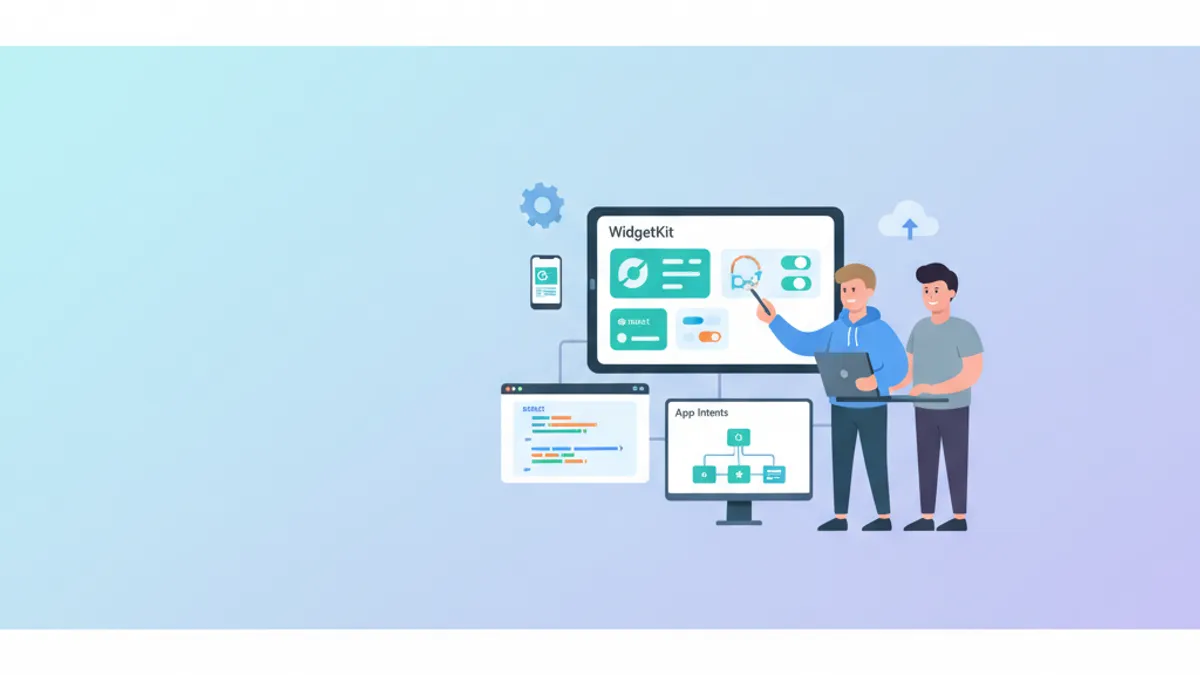
iOS 17 introduced native interactivity to WidgetKit, allowing widgets to respond to user actions directly on the home screen without opening the app. iOS 26 refined this with Liquid Glass material and accented rendering modes. This guide covers interactive widget development from iOS 17 through iOS 26.
Creating interactive iOS 17-26 widgets, from project setup to advanced patterns with animations, state management, and the latest WWDC 2026 App Intents features.
Interactive Widget Architecture in iOS 17+
iOS 17+ widget interactivity works through the App Intents framework. Unlike traditional deep links that open the app, App Intents allow code execution directly from the widget, then automatically refresh the display with new data.
import WidgetKit
import SwiftUI
import AppIntents

// The architecture relies on three main components:
// 1. Widget Timeline Provider - supplies the data
// 2. Widget View - displays the interface with Button/Toggle
// 3. App Intent - executes the action on tap

struct TaskWidget: Widget {
    // Unique widget identifier
    let kind: String = "TaskWidget"

    var body: some WidgetConfiguration {
        // StaticConfiguration for widgets without parameters
        StaticConfiguration(
            kind: kind,
            provider: TaskTimelineProvider()
        ) { entry in
            TaskWidgetView(entry: entry)
                // Required for App Intents since iOS 17
                .containerBackground(.fill.tertiary, for: .widget)
        }
        .configurationDisplayName("Tasks")
        .description("Manage your tasks from the home screen.")
        .supportedFamilies([.systemSmall, .systemMedium])
    }
}
The widget declares its configuration and specifies the provider that supplies data. The .containerBackground attribute is mandatory since iOS 17 for interactive widgets, and iOS 26 automatically applies Liquid Glass styling when appropriate.
Creating the Timeline Provider
The Timeline Provider determines when and how the widget refreshes. For interactive widgets, it must also react to changes triggered by App Intents.
import WidgetKit
import SwiftUI

// Entry representing widget state at a given moment
struct TaskEntry: TimelineEntry {
    let date: Date
    let tasks: [Task]

    // Loading state for visual feedback
    var isLoading: Bool = false
}

// Data model shared between app and widget
struct Task: Identifiable, Codable {
    let id: UUID
    var title: String
    var isCompleted: Bool
    var priority: Priority

    enum Priority: String, Codable {
        case low, medium, high
    }
}

struct TaskTimelineProvider: TimelineProvider {
    // Placeholder displayed during initial loading
    func placeholder(in context: Context) -> TaskEntry {
        TaskEntry(
            date: Date(),
            tasks: [
                Task(id: UUID(), title: "Sample task", isCompleted: false, priority: .medium)
            ]
        )
    }

    // Snapshot for widget gallery
    func getSnapshot(in context: Context, completion: @escaping (TaskEntry) -> Void) {
        let entry = TaskEntry(
            date: Date(),
            tasks: TaskDataManager.shared.fetchTasks().prefix(3).map { $0 }
        )
        completion(entry)
    }

    // Complete timeline with refresh policy
    func getTimeline(in context: Context, completion: @escaping (Timeline<TaskEntry>) -> Void) {
        let tasks = TaskDataManager.shared.fetchTasks()
        let entry = TaskEntry(date: Date(), tasks: Array(tasks.prefix(3)))

        // Refresh in 15 minutes or after user action
        let nextUpdate = Calendar.current.date(
            byAdding: .minute,
            value: 15,
            to: Date()
        ) ?? Date()

        let timeline = Timeline(
            entries: [entry],
            policy: .after(nextUpdate)
        )
        completion(timeline)
    }
}
The provider uses a shared TaskDataManager to access data. This approach ensures synchronization between the main application and the widget. For related state management patterns, see SwiftUI @Observable vs @State.
To share data between the app and widget, configure an App Group in the project capabilities. UserDefaults or files must use this shared group.
Shared Data Manager
Data sharing between the application and widget requires a common container accessible via App Group.
import Foundation

final class TaskDataManager {
    // Singleton for global access
    static let shared = TaskDataManager()

    // App Group identifier configured in Xcode
    private let appGroupID = "group.com.example.taskapp"

    // UserDefaults shared between app and widget
    private var sharedDefaults: UserDefaults? {
        UserDefaults(suiteName: appGroupID)
    }

    private let tasksKey = "tasks"

    private init() {}

    // Fetch tasks from shared storage
    func fetchTasks() -> [Task] {
        guard let data = sharedDefaults?.data(forKey: tasksKey),
              let tasks = try? JSONDecoder().decode([Task].self, from: data) else {
            return []
        }
        return tasks
    }

    // Save with widget notification
    func saveTasks(_ tasks: [Task]) {
        guard let data = try? JSONEncoder().encode(tasks) else { return }
        sharedDefaults?.set(data, forKey: tasksKey)
    }

    // Update a specific task
    func updateTask(_ task: Task) {
        var tasks = fetchTasks()
        if let index = tasks.firstIndex(where: { $0.id == task.id }) {
            tasks[index] = task
            saveTasks(tasks)
        }
    }

    // Toggle completed state
    func toggleTaskCompletion(taskID: UUID) {
        var tasks = fetchTasks()
        if let index = tasks.firstIndex(where: { $0.id == taskID }) {
            tasks[index].isCompleted.toggle()
            saveTasks(tasks)
        }
    }
}
This manager encapsulates all persistence logic and will be used by both the application and widget App Intents.
Creating the App Intent for Interactivity
The App Intent defines the action executed when the user interacts with the widget. iOS executes this action in the background then automatically refreshes the widget.
import AppIntents
import WidgetKit

// Intent to toggle task state
struct ToggleTaskIntent: AppIntent {
    // Title displayed in Siri shortcuts
    static var title: LocalizedStringResource = "Toggle task state"

    // Description for accessibility
    static var description = IntentDescription("Marks a task as completed or not completed.")

    // Parameter: ID of task to modify
    @Parameter(title: "Task ID")
    var taskID: String

    // Required initializer for AppIntent
    init() {}

    // Initializer with parameter for view creation
    init(taskID: UUID) {
        self.taskID = taskID.uuidString
    }

    // Action execution
    func perform() async throws -> some IntentResult {
        // Convert string ID to UUID
        guard let uuid = UUID(uuidString: taskID) else {
            return .result()
        }

        // Update the task
        TaskDataManager.shared.toggleTaskCompletion(taskID: uuid)

        // Request widget refresh
        WidgetCenter.shared.reloadTimelines(ofKind: "TaskWidget")

        return .result()
    }
}
The call to WidgetCenter.shared.reloadTimelines triggers immediate widget refresh after the action, ensuring instant visual feedback.
Ready to ace your iOS interviews?
Practice with our interactive simulators, flashcards, and technical tests.
Widget View with Interactive Buttons
The widget view uses the standard SwiftUI Button component with the intent as action. iOS 17+ automatically intercepts these interactions to execute the App Intent.
import SwiftUI
import WidgetKit

struct TaskWidgetView: View {
    let entry: TaskEntry

    // Adapt to widget size
    @Environment(\.widgetFamily) var family

    var body: some View {
        VStack(alignment: .leading, spacing: 8) {
            // Header with title and counter
            headerView

            // Task list with interactive buttons
            ForEach(entry.tasks.prefix(tasksLimit)) { task in
                TaskRowView(task: task)
            }

            Spacer(minLength: 0)
        }
        .padding()
    }

    // Number of tasks based on size
    private var tasksLimit: Int {
        switch family {
        case .systemSmall: return 2
        case .systemMedium: return 3
        default: return 4
        }
    }

    private var headerView: some View {
        HStack {
            Text("Tasks")
                .font(.headline)
                .fontWeight(.bold)

            Spacer()

            // Badge with remaining task count
            let remaining = entry.tasks.filter { !$0.isCompleted }.count
            Text("\(remaining)")
                .font(.caption.bold())
                .foregroundStyle(.white)
                .padding(.horizontal, 8)
                .padding(.vertical, 4)
                .background(remaining > 0 ? Color.orange : Color.green)
                .clipShape(Capsule())
        }
    }
}

struct TaskRowView: View {
    let task: Task

    var body: some View {
        // Button with App Intent as action
        Button(intent: ToggleTaskIntent(taskID: task.id)) {
            HStack(spacing: 12) {
                // Completion indicator
                Image(systemName: task.isCompleted ? "checkmark.circle.fill" : "circle")
                    .font(.title3)
                    .foregroundStyle(task.isCompleted ? .green : .secondary)

                // Task title
                Text(task.title)
                    .font(.subheadline)
                    .strikethrough(task.isCompleted)
                    .foregroundStyle(task.isCompleted ? .secondary : .primary)
                    .lineLimit(1)

                Spacer()

                // Priority indicator
                priorityIndicator
            }
            .padding(.vertical, 6)
            .padding(.horizontal, 10)
            .background(Color(.systemBackground).opacity(0.5))
            .cornerRadius(8)
        }
        .buttonStyle(.plain)
    }

    @ViewBuilder
    private var priorityIndicator: some View {
        switch task.priority {
        case .high:
            Image(systemName: "exclamationmark.circle.fill")
                .foregroundStyle(.red)
        case .medium:
            Image(systemName: "minus.circle.fill")
                .foregroundStyle(.orange)
        case .low:
            EmptyView()
        }
    }
}
The Button(intent:) syntax directly connects the button to the App Intent. On tap, iOS executes perform() then refreshes the widget automatically.
Interactive Toggle for Widgets
For on/off type actions, the Toggle component offers a button alternative with native iOS styling.
import SwiftUI
import AppIntents

// Specific intent for Toggle with explicit state
struct SetTaskCompletionIntent: AppIntent {
    static var title: LocalizedStringResource = "Set task state"

    @Parameter(title: "Task ID")
    var taskID: String

    // Target state: true = completed, false = not completed
    @Parameter(title: "Completed")
    var isCompleted: Bool

    init() {}

    init(taskID: UUID, isCompleted: Bool) {
        self.taskID = taskID.uuidString
        self.isCompleted = isCompleted
    }

    func perform() async throws -> some IntentResult {
        guard let uuid = UUID(uuidString: taskID) else {
            return .result()
        }

        var tasks = TaskDataManager.shared.fetchTasks()
        if let index = tasks.firstIndex(where: { $0.id == uuid }) {
            // Set state explicitly (not toggle)
            tasks[index].isCompleted = isCompleted
            TaskDataManager.shared.saveTasks(tasks)
        }

        WidgetCenter.shared.reloadTimelines(ofKind: "TaskWidget")
        return .result()
    }
}

struct TaskToggleRowView: View {
    let task: Task

    var body: some View {
        HStack {
            Text(task.title)
                .font(.subheadline)
                .strikethrough(task.isCompleted)

            Spacer()

            // Interactive toggle with intent
            Toggle(
                isOn: task.isCompleted,
                intent: SetTaskCompletionIntent(
                    taskID: task.id,
                    isCompleted: !task.isCompleted
                )
            )
            .toggleStyle(.switch)
            .labelsHidden()
        }
        .padding(.vertical, 4)
    }
}
Toggle provides a more intuitive interaction for binary states and integrates naturally into iOS designs.
Widgets cannot display alerts, sheets, or navigation. All actions must be self-contained and update visible state directly.
Refresh Animations and Transitions
iOS 17+ allows animating transitions during widget refresh after an action. The .contentTransition modifier controls these animations.
import SwiftUI
import WidgetKit

struct AnimatedTaskRowView: View {
    let task: Task

    var body: some View {
        Button(intent: ToggleTaskIntent(taskID: task.id)) {
            HStack(spacing: 12) {
                // Icon with transition animation
                Image(systemName: task.isCompleted ? "checkmark.circle.fill" : "circle")
                    .font(.title3)
                    .foregroundStyle(task.isCompleted ? .green : .secondary)
                    // Icon animation on change
                    .contentTransition(.symbolEffect(.replace))

                Text(task.title)
                    .font(.subheadline)
                    .strikethrough(task.isCompleted)
                    .foregroundStyle(task.isCompleted ? .secondary : .primary)
                    // Text animation
                    .contentTransition(.opacity)

                Spacer()
            }
            .padding(.vertical, 6)
            .padding(.horizontal, 10)
            .background(
                RoundedRectangle(cornerRadius: 8)
                    .fill(task.isCompleted ? Color.green.opacity(0.1) : Color.clear)
            )
            // Background animation
            .animation(.easeInOut(duration: 0.3), value: task.isCompleted)
        }
        .buttonStyle(.plain)
    }
}

// Widget with animated invalidation
struct AnimatedTaskWidget: Widget {
    let kind: String = "AnimatedTaskWidget"

    var body: some WidgetConfiguration {
        StaticConfiguration(
            kind: kind,
            provider: TaskTimelineProvider()
        ) { entry in
            AnimatedTaskWidgetView(entry: entry)
                .containerBackground(.fill.tertiary, for: .widget)
        }
        .configurationDisplayName("Animated Tasks")
        .description("Widgets with smooth animations.")
        .supportedFamilies([.systemSmall, .systemMedium, .systemLarge])
        // Enable content animations
        .contentMarginsDisabled()
    }
}

struct AnimatedTaskWidgetView: View {
    let entry: TaskEntry

    var body: some View {
        VStack(alignment: .leading, spacing: 8) {
            headerView

            ForEach(entry.tasks) { task in
                AnimatedTaskRowView(task: task)
            }

            Spacer(minLength: 0)
        }
        .padding()
    }

    private var headerView: some View {
        HStack {
            Text("Tasks")
                .font(.headline.bold())

            Spacer()

            let completed = entry.tasks.filter(\.isCompleted).count
            let total = entry.tasks.count

            // Animated progress
            Text("\(completed)/\(total)")
                .font(.caption.bold())
                .foregroundStyle(.secondary)
                .contentTransition(.numericText())
        }
    }
}
The .symbolEffect(.replace) and .numericText() animations create smooth transitions between states, significantly improving user experience.
iOS 26 Liquid Glass and Accented Rendering
iOS 26 introduced Liquid Glass material and accented rendering modes for widgets. These visual updates apply automatically when using .containerBackground, but developers can control the rendering behavior.
import SwiftUI
import WidgetKit

struct ModernTaskWidgetView: View {
    let entry: TaskEntry

    var body: some View {
        VStack(alignment: .leading, spacing: 8) {
            ForEach(entry.tasks.prefix(3)) { task in
                TaskRowView(task: task)
            }
        }
        .padding()
        // iOS 26: Control accented rendering for images
        .widgetAccentedRenderingMode(.fullColor)
    }
}

// Extra large portrait family (iOS 26+)
struct LargePortraitTaskWidget: Widget {
    let kind: String = "LargePortraitTaskWidget"

    var body: some WidgetConfiguration {
        StaticConfiguration(
            kind: kind,
            provider: TaskTimelineProvider()
        ) { entry in
            LargePortraitTaskWidgetView(entry: entry)
                .containerBackground(.fill.tertiary, for: .widget)
        }
        .configurationDisplayName("Task Overview")
        .description("Full task overview with extra space.")
        // New in iOS 26: system extra large portrait
        .supportedFamilies([.systemExtraLarge])
    }
}

struct LargePortraitTaskWidgetView: View {
    let entry: TaskEntry

    var body: some View {
        VStack(alignment: .leading, spacing: 12) {
            Text("All Tasks")
                .font(.title2.bold())

            // More space for task details
            ForEach(entry.tasks) { task in
                DetailedTaskRowView(task: task)
            }

            Spacer(minLength: 0)
        }
        .padding()
    }
}

struct DetailedTaskRowView: View {
    let task: Task

    var body: some View {
        Button(intent: ToggleTaskIntent(taskID: task.id)) {
            VStack(alignment: .leading, spacing: 4) {
                HStack {
                    Image(systemName: task.isCompleted ? "checkmark.circle.fill" : "circle")
                        .foregroundStyle(task.isCompleted ? .green : .secondary)
                    Text(task.title)
                        .font(.headline)
                        .strikethrough(task.isCompleted)
                }
                Text("Priority: \(task.priority.rawValue.capitalized)")
                    .font(.caption)
                    .foregroundStyle(.secondary)
            }
            .padding()
            .frame(maxWidth: .infinity, alignment: .leading)
            .background(Color(.systemBackground).opacity(0.3))
            .cornerRadius(12)
        }
        .buttonStyle(.plain)
    }
}
The .widgetAccentedRenderingMode(.fullColor) modifier preserves image colors in accented environments. The .systemExtraLarge family, originally from visionOS 26, is now available on iOS and iPadOS.
WWDC 2026 App Intents: EntityCollection for Performance
WWDC 2026 introduced EntityCollection to handle large numbers of entities efficiently. Instead of resolving all entities before intent execution, only identifiers are passed.
import AppIntents
import WidgetKit

// Mark multiple tasks complete at once - efficiently
struct BatchCompleteTasksIntent: AppIntent {
    static var title: LocalizedStringResource = "Complete multiple tasks"

    // EntityCollection passes IDs only, not resolved entities
    @Parameter(title: "Tasks")
    var tasks: EntityCollection<TaskEntity>

    init() {}

    init(taskIDs: [UUID]) {
        // Create collection from IDs
        self.tasks = EntityCollection(taskIDs.map { TaskEntity(id: $0) })
    }

    func perform() async throws -> some IntentResult {
        // Access IDs directly without resolution overhead
        let taskIDs = tasks.identifiers

        var allTasks = TaskDataManager.shared.fetchTasks()
        for id in taskIDs {
            if let uuid = UUID(uuidString: id),
               let index = allTasks.firstIndex(where: { $0.id == uuid }) {
                allTasks[index].isCompleted = true
            }
        }
        TaskDataManager.shared.saveTasks(allTasks)

        WidgetCenter.shared.reloadTimelines(ofKind: "TaskWidget")
        return .result()
    }
}

// Entity conformance for TaskEntity
struct TaskEntity: AppEntity {
    static var typeDisplayRepresentation: TypeDisplayRepresentation = "Task"
    static var defaultQuery = TaskEntityQuery()

    var id: UUID
    var displayRepresentation: DisplayRepresentation {
        DisplayRepresentation(title: "Task \(id.uuidString.prefix(8))")
    }
}

struct TaskEntityQuery: EntityQuery {
    func entities(for identifiers: [UUID]) async throws -> [TaskEntity] {
        identifiers.map { TaskEntity(id: $0) }
    }
}
This pattern is critical for bulk operations. Apple's internal benchmarks showed tagging 1000 photos went from slow to "nearly instant" with EntityCollection.
Long-Running Intents with Progress Display
WWDC 2026 also introduced LongRunningIntent for operations exceeding the standard 30-second limit, with progress displayed as a Live Activity.
import AppIntents
import WidgetKit

struct SyncAllTasksIntent: LongRunningIntent, CancellableIntent {
    static var title: LocalizedStringResource = "Sync all tasks"

    func perform() async throws -> some IntentResult & ProvidesDialog {
        let result = try await performBackgroundTask {
            let tasks = TaskDataManager.shared.fetchTasks()
            progress.totalUnitCount = Int64(tasks.count)

            for (index, task) in tasks.enumerated() {
                // Check for cancellation
                try Task.checkCancellation()

                // Simulate server sync
                try await Task.sleep(for: .milliseconds(100))
                progress.completedUnitCount = Int64(index + 1)
            }

            return "Synced \(tasks.count) tasks"
        } onCancel: { reason in
            // Cleanup based on cancellation reason
            switch reason {
            case .user:
                print("User cancelled sync")
            case .timeout:
                print("System timeout")
            case .systemReclaim:
                print("System reclaimed resources")
            @unknown default:
                break
            }
        }

        WidgetCenter.shared.reloadTimelines(ofKind: "TaskWidget")
        return .result(dialog: "\(result)")
    }
}
The progress appears as a Live Activity, and CancellableIntent provides the reason for cancellation so cleanup can be handled appropriately. For more on Swift concurrency patterns, see Swift Structured Concurrency.
Configurable Widget with AppIntentConfiguration
For user-customizable widgets (filters, categories), AppIntentConfiguration replaces StaticConfiguration.
import WidgetKit
import SwiftUI
import AppIntents

// Configuration exposed to user
struct TaskWidgetConfigurationIntent: WidgetConfigurationIntent {
    static var title: LocalizedStringResource = "Task configuration"
    static var description = IntentDescription("Customize task display.")

    // Filter by priority
    @Parameter(title: "Priority", default: .all)
    var priorityFilter: PriorityFilter

    // Show completed tasks
    @Parameter(title: "Show completed", default: true)
    var showCompleted: Bool

    // Maximum number of tasks
    @Parameter(title: "Task count", default: 3)
    var maxTasks: Int
}

// Enum for priority filter
enum PriorityFilter: String, AppEnum {
    case all
    case high
    case medium
    case low

    static var typeDisplayRepresentation: TypeDisplayRepresentation = "Priority"

    static var caseDisplayRepresentations: [PriorityFilter: DisplayRepresentation] = [
        .all: "All",
        .high: "High",
        .medium: "Medium",
        .low: "Low"
    ]
}

// Provider adapted to configuration
struct ConfigurableTaskProvider: AppIntentTimelineProvider {
    typealias Entry = TaskEntry
    typealias Intent = TaskWidgetConfigurationIntent

    func placeholder(in context: Context) -> TaskEntry {
        TaskEntry(date: Date(), tasks: [])
    }

    func snapshot(for configuration: TaskWidgetConfigurationIntent, in context: Context) async -> TaskEntry {
        let tasks = filteredTasks(for: configuration)
        return TaskEntry(date: Date(), tasks: tasks)
    }

    func timeline(for configuration: TaskWidgetConfigurationIntent, in context: Context) async -> Timeline<TaskEntry> {
        let tasks = filteredTasks(for: configuration)
        let entry = TaskEntry(date: Date(), tasks: tasks)

        let nextUpdate = Date().addingTimeInterval(15 * 60)
        return Timeline(entries: [entry], policy: .after(nextUpdate))
    }

    // Apply configuration filters
    private func filteredTasks(for config: TaskWidgetConfigurationIntent) -> [Task] {
        var tasks = TaskDataManager.shared.fetchTasks()

        // Filter by priority
        if config.priorityFilter != .all {
            let priority = Task.Priority(rawValue: config.priorityFilter.rawValue) ?? .medium
            tasks = tasks.filter { $0.priority == priority }
        }

        // Filter completed if needed
        if !config.showCompleted {
            tasks = tasks.filter { !$0.isCompleted }
        }

        // Limit count
        return Array(tasks.prefix(config.maxTasks))
    }
}

// Widget with user configuration
struct ConfigurableTaskWidget: Widget {
    let kind: String = "ConfigurableTaskWidget"

    var body: some WidgetConfiguration {
        // AppIntentConfiguration for configurable widgets
        AppIntentConfiguration(
            kind: kind,
            intent: TaskWidgetConfigurationIntent.self,
            provider: ConfigurableTaskProvider()
        ) { entry in
            TaskWidgetView(entry: entry)
                .containerBackground(.fill.tertiary, for: .widget)
        }
        .configurationDisplayName("Custom Tasks")
        .description("Filter and customize your tasks.")
        .supportedFamilies([.systemSmall, .systemMedium, .systemLarge])
    }
}
Users can configure the widget via long press, offering a personalized experience without additional code in the application. For more on App Intents and Siri integration, see App Intents 2.0 and Siri Shortcuts.
Best Practices and Optimizations
Several patterns ensure performant and reliable interactive widgets.
import WidgetKit
import SwiftUI

// 1. Always invalidate cache after modification
final class WidgetRefreshManager {
    static func refreshAllWidgets() {
        // Refresh all app widgets
        WidgetCenter.shared.reloadAllTimelines()
    }

    static func refreshWidget(kind: String) {
        // Refresh specific widget
        WidgetCenter.shared.reloadTimelines(ofKind: kind)
    }

    // Call from app after data modification
    static func notifyDataChanged() {
        Task { @MainActor in
            refreshAllWidgets()
        }
    }
}

// 2. Limit view complexity
struct OptimizedWidgetView: View {
    let entry: TaskEntry

    var body: some View {
        // Prefer simple views without GeometryReader
        VStack(alignment: .leading, spacing: 8) {
            ForEach(entry.tasks.prefix(3)) { task in
                // Lightweight components
                minimalTaskRow(task)
            }
        }
        .padding()
    }

    // Minimal view for performance
    @ViewBuilder
    private func minimalTaskRow(_ task: Task) -> some View {
        Button(intent: ToggleTaskIntent(taskID: task.id)) {
            HStack {
                Image(systemName: task.isCompleted ? "checkmark.circle.fill" : "circle")
                Text(task.title)
                    .lineLimit(1)
            }
        }
        .buttonStyle(.plain)
    }
}

// 3. Use @AppStorage for simple state
struct QuickSettingsWidgetView: View {
    // Direct access to shared UserDefaults
    @AppStorage("showCompletedTasks", store: UserDefaults(suiteName: "group.com.example.app"))
    private var showCompleted = true

    var body: some View {
        // State persists between refreshes
        Text(showCompleted ? "Showing all" : "Hiding completed")
    }
}

// 4. Pre-calculate data in provider
struct OptimizedTaskEntry: TimelineEntry {
    let date: Date
    let tasks: [Task]

    // Pre-calculated data
    let completedCount: Int
    let pendingCount: Int
    let highPriorityCount: Int

    init(date: Date, tasks: [Task]) {
        self.date = date
        self.tasks = tasks

        // Calculations performed once
        self.completedCount = tasks.filter(\.isCompleted).count
        self.pendingCount = tasks.filter { !$0.isCompleted }.count
        self.highPriorityCount = tasks.filter { $0.priority == .high && !$0.isCompleted }.count
    }
}
These optimizations ensure responsive widgets that do not consume excessive battery.
Use the widget scheme in Xcode for debugging. The canvas preview allows testing different sizes and states without device installation.
Sources
- WidgetKit Documentation - Apple's official WidgetKit reference
- App Intents Framework - Complete App Intents API documentation
- WWDC 2026: Discover new capabilities in the App Intents framework - EntityCollection, LongRunningIntent, SyncableEntity
- Human Interface Guidelines: Materials - Liquid Glass design guidance
Interactive iOS Widget Development Checklist
WidgetKit with App Intents transforms widgets into true interactive extensions of iOS applications. The architecture introduced in iOS 17 remains stable through iOS 26, with visual refinements and performance features added along the way.
Implementation checklist
- Configure App Group for data sharing between app and widget extension
- Create Timeline Provider with appropriate refresh policy
- Implement App Intents for each user action
- Use
Button(intent:)orToggle(intent:)for interactivity - Call
WidgetCenter.shared.reloadTimelinesafter data modification - Add mandatory
.containerBackgroundfor iOS 17+ compatibility - Use
.widgetAccentedRenderingModefor iOS 26 Liquid Glass support - Implement smooth transition animations with
.contentTransition - Handle loading and error states for visual feedback
- Use
EntityCollectionfor bulk operations to avoid resolution overhead - Test on all supported widget sizes including
.systemExtraLarge
Start practicing!
Test your knowledge with our interview simulators and technical tests.
Can you spot the bug in iOS?
One real snippet, one hidden bug, one attempt a day. No account needed to try.

Written by
Anthony Fillion-MailletFounder of SharpSkill
Full-stack developer for over 10 years. Runs SharpSkill and answers for everything published here.
Updated on August 24, 2026
Tags
Share
Related articles

App Intents 2.0 and Siri Shortcuts: iOS 27 Automation Guide
Complete guide to App Intents 2.0 and Siri Shortcuts for iOS 27. Build streaming responses, multi-turn conversations, View Annotations, and integrate with Foundation Models.
Swift Package Manager in 2026: Creating, Publishing and Interview Questions
Master Swift Package Manager with this comprehensive tutorial. Learn to create packages, manage dependencies, publish libraries, and prepare for iOS interview questions about SPM.
Combine vs async/await in Swift: Progressive Migration Patterns
Complete guide to migrating from Combine to async/await in Swift: progressive strategies, bridging patterns, and paradigm coexistence in iOS codebases.